
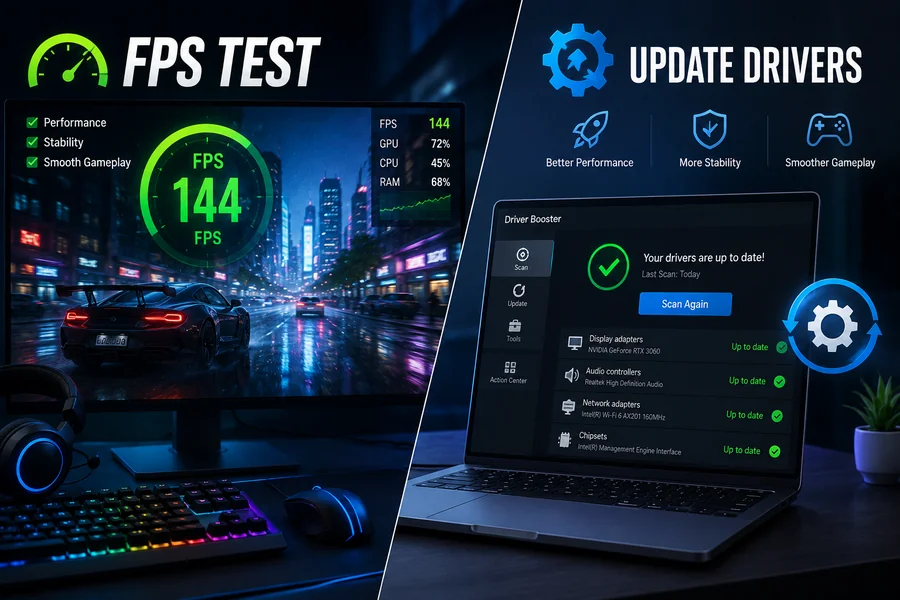
If your games feel sluggish, stutter during intense scenes, or simply don’t run as smoothly as you’d expect from your hardware, the first step toward fixing it is understanding your actual performance numbers. Learning to FPS test your system gives you a clear, objective picture of how your PC handles different games, while keeping your drivers updated ensures your hardware is actually capable of hitting those numbers in the first place. Together, these two habits form the foundation of a smooth, lag-free gaming experience.
What Does FPS Actually Mean?
FPS, or frames per second, measures how many individual images your PC renders every second while you play. Think of it like a flipbook: each page is a frame, and the faster you flip through them, the smoother the motion appears on screen. A higher FPS means smoother, more responsive gameplay, while a low or fluctuating FPS often signals that something, whether it’s your GPU, CPU, or a background process, is holding your system back.
Knowing your FPS isn’t just a bragging right for hardware enthusiasts. It helps you answer practical questions: Are your graphics settings too demanding for your hardware? Did a recent change actually improve performance, or make it worse? Is your PC performing the way it should, or is an outdated component quietly limiting you?
How to FPS Test Your PC
There are several reliable ways to check your frame rate, ranging from built-in game options to dedicated tools.
In-game FPS counters: Most modern games include a built-in performance display. Look under Settings, then Video or Gameplay, for an option labeled “Show FPS,” “Display Performance Stats,” or “Telemetry.” This is often the most accurate method since it requires no extra software running in the background.
Platform overlays: If you play through Steam, you can enable an FPS counter directly from Settings, then In-Game, and choose a screen corner for the display. It’s lightweight and adds virtually no performance overhead. Windows users also have access to the Xbox Game Bar (Win + G), which includes a Performance widget that can be pinned to stay visible during gameplay.
GPU vendor tools: Both NVIDIA and AMD offer overlay solutions through their respective control panels, letting you monitor FPS alongside GPU temperature and usage without installing third-party software.
Estimating performance before you play: If you want to know how a game will perform before installing it, or you’re planning an upgrade, an online tool is a useful shortcut to FPS test your exact hardware combination. Simply select your CPU, GPU, and target game to get an estimated average frame rate at different resolutions, such as 1080p, 1440p, or 4K. This is particularly helpful for spotting a CPU-GPU bottleneck, where a mismatch between the two components limits your overall performance, without needing to benchmark the game yourself first.
Why Outdated Drivers Quietly Sabotage Your FPS
Once you’ve measured your FPS, the next question is usually: why isn’t it higher? Many gamers assume the answer is always a hardware upgrade, but outdated drivers are one of the most overlooked culprits behind underwhelming performance.
Drivers act as the communication layer between your operating system and your hardware. Without properly updated drivers, even powerful components can’t access their full capabilities. GPU manufacturers regularly release updates that improve stability, patch bugs, and optimize performance for newly released games, since developers are constantly updating their titles and drivers need to keep pace.
Running outdated GPU drivers can lead to several issues, including:
- Lower or inconsistent frame rates in newer titles
- Stuttering or micro-freezes during gameplay
- Graphical glitches or visual artifacts
- Reduced compatibility with new game engines and features
- Occasional crashes during demanding scenes
Not every driver update results in a dramatic FPS boost, but newer drivers consistently improve stability and reduce bottlenecks, especially for recently released games that are optimized around the latest driver builds. Combined with other habits like managing background apps and keeping your system cool, updated drivers help you get the most out of the hardware you already have, rather than assuming an upgrade is the only fix.
Making Driver Updates Effortless
Manually checking for driver updates across your GPU, chipset, network adapter, and other components can be time-consuming, and it’s easy to miss one. This is where a dedicated tool becomes useful, since it lets you update drivers across your entire system in a single click. The tool scans your PC, detects outdated or missing drivers, and installs the latest versions automatically, helping reduce lag and deliver a more stable gaming experience without the manual guesswork.
Keeping drivers current also matters beyond gaming. Updated drivers often include security patches and improved compatibility with the latest Windows updates, making regular driver maintenance a good habit for overall system health, not just frame rates.
Bringing It All Together
Testing your FPS gives you the data, and updated drivers help ensure your hardware is actually delivering the performance it’s capable of. Start by checking your current frame rate using an in-game counter, Steam overlay, or an FPS calculator to estimate expected performance for your setup. From there, make it a habit to keep your drivers updated, whether manually through your GPU manufacturer’s site or with an automated tool like Driver Booster.
A few minutes spent testing your FPS and updating your drivers can be the difference between a choppy, frustrating session and smooth, consistent gameplay, no hardware upgrade required.

Hi, I’m Tony — a passionate blogger with over 3 years of experience in writing informative and accurate content. I specialize in sharing practical insights on sizes, measurements, and spatial guides to help readers make confident decisions. Through DimensionsPoint.com, I aim to simplify complex data into easy-to-understand content that’s reliable, useful, and SEO-friendly.
When I’m not writing, I’m researching the latest trends in measurement standards and user needs to keep my content relevant and up to date.