
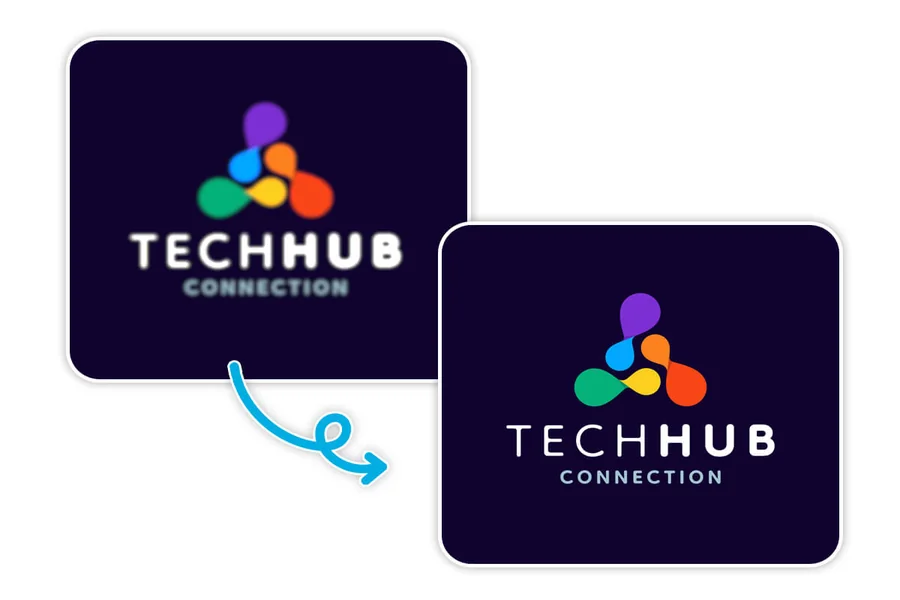
You find your old company logo, place it on a banner, and it looks soft and blocky. This happens to almost every small business at some point. Low logo resolution is one of the most common reasons brand graphics look unprofessional. The good news is that modern image upscaling tools can often fix a pixelated logo in a few clicks. This guide explains what an upscaler does, when it works best, and when you should look for a vector file instead. You will also learn simple steps and checks that keep your brand graphics sharp on websites, social posts, and print.
Key Takeaways
- A logo looks blurry when you enlarge an image made of pixels, because the pixel count stays the same.
- A logo upscaler adds pixels and uses AI to rebuild edges and details, so the result looks sharper at a larger size.
- If you have the original vector file (SVG, AI, EPS, or PDF), use that first. It scales without losing quality.
- Always compare the before and after, and check for odd edges or changed shapes.
- Keep your original files and save the upscaled version under a new name.
Why Logos Look Blurry When You Make Them Bigger
Most images you see online are raster images. A raster image is a grid of tiny colored squares called pixels. Adobe explains that raster files have a fixed number of dots, so if you enlarge them too much, the dots become visible and the image looks fuzzy or pixelated.
Vector files work in a different way. According to Adobe, a vector file is a set of drawing instructions, not a grid of pixels, so it cannot become fuzzy or pixelated at any size. Common vector formats are AI, EPS, PDF, and SVG.
Here is a quick comparison:
| Feature | Raster logo (PNG, JPG) | Vector logo (SVG, AI, EPS) |
| Built from | Pixels | Paths and shapes |
| When enlarged | Can look blurry or blocky | Stays sharp |
| Best for | Web and social use at set sizes | Print, signs, and any size |
| Editing | Harder to change shapes | Easy to edit in design software |
Because the pixel count in a raster image is fixed when it is created, enlarging it cannot bring back detail that was never captured. That is the problem an upscaler tries to solve.
What Is a Logo Upscaler?
A logo upscaler is a tool that increases the size and pixel count of a logo image while trying to keep the edges clean. Instead of just stretching the image, which makes it blurry, AI upscalers study the shapes, lines, and colors, then predict what a sharper version would look like.
CapCut offers a free logo upscaler for this task. CapCut’s guides on its image upscaler say the tool removes blur, refines edges, and restores color while increasing pixel count. They also say it shows an instant preview, so you can compare before and after without leaving the editor. Features and limits can change, so check the tool page for the latest details.
A CapCut guide on logo upscaling also gives a useful warning: when you upscale a logo, the process should not add artifacts or distortions that harm the logo’s design. That is a good rule for any tool.
How AI Upscaling Works in Simple Words
You do not need to know the math, but a simple idea helps you judge results.
- The tool reads your logo. It looks at edges, curves, text, and flat color areas.
- It adds new pixels. The image gets a larger size, such as 2x or 4x.
- It predicts the details. The AI fills in the new pixels in a way that looks natural, so lines look cleaner and text looks sharper.
- It shows a preview. You compare it with your original and decide if you like it.
CapCut’s guides mention 2x and 4x options for its image upscaler. The AI is making an educated guess, not recovering the original file. This means results can vary, and tiny details may look slightly different from the first version.
When to Use a Logo Upscaler
A logo upscaler is helpful when:
- You only have a small PNG or JPG of your logo
- You need the logo larger for a website banner or social cover
- A client sent a low-quality file and the original is lost
- You want a crisper version for a slide deck or video
- You are cleaning up a screenshot of a logo for quick use
It is also a fast fix when a designer is not available and you need something today.
When You Should Find the Vector File Instead
An upscaler is not always the best answer. Look for the original vector file when:
- You are printing large items such as signs, vehicle wraps, or banners
- The logo has very thin lines or tiny text
- You need exact brand colors and shapes
- You plan to edit the logo later
A beginner guide on vector and raster graphics explains that tracing a low-resolution image back into vector shapes can work for simple, high-contrast logos, but recreating a lost logo from a small PNG is a painful job. If you still have the original files from your designer, use them.
Adobe also notes that you can export a vector logo to raster formats like PNG and JPG whenever you need them, so keeping the vector source gives you the most options.
Step-by-Step: How to Upscale a Logo in Seconds
These steps work for most online upscalers, including CapCut.
- Pick your best file. Use the largest, cleanest version you have. A PNG with a clear or white background often works well.
- Open the upscaler. Upload the file from your device or another source the tool supports.
- Choose a size. Start with 2x. Use 4x only if you really need a very large file.
- Check the preview. Compare the before and after. Zoom in on letters, curves, and corners.
- Download the result. Save it as a new file, such as logo-upscaled-2x.png, and keep your original untouched.
- Test it where you will use it. Place it on your banner, web page, or slide and look at it at the final size.
Quality Checklist After Upscaling
Look closely before you publish:
- Do the edges of letters look smooth and straight?
- Are curves still round and not wobbly?
- Did any text change shape or spacing?
- Are the colors the same as your brand colors?
- Are there halos, spots, or noise around the logo?
- Does the background look clean?
If something looks off, try again with a different starting file or a smaller upscale size.
Choosing the Right File Type and Resolution
Different uses need different files. An Upwork guide on logo formats says a printed logo should have a minimum resolution of 300 DPI. For screens, the main need is enough pixel width for the space where the logo will appear.
| Use | Good choice |
| Website logo | SVG if you have it, or a clear PNG |
| Social profile image | PNG at a size the platform accepts |
| Presentation slides | PNG with a transparent background |
| Print materials | Vector file, or a very large high-resolution PNG |
| Large signs and banners | Vector file |
Check each platform’s current size rules, since they change over time.
A Simple Example
This is a made-up scenario, not a real customer case.
Sam runs a small bakery. He only has a small PNG of his logo from an old business card. He needs it for an online menu banner. He runs the PNG through a logo upscaler at 2x, compares the preview, and sees that the edges look cleaner. The thin script text looks a little uneven, so he tries again from a cleaner source file and gets a better result. For the shop’s window sign, he asks his designer for the vector file, because a large print needs the best quality.
The lesson is to use the upscaler for quick digital needs, and use vector files for big or detailed work.
Common Mistakes to Avoid
- Upscaling a very blurry or tiny image and expecting perfect results
- Upscaling the same file again and again
- Replacing your original file instead of saving a new copy
- Skipping the zoomed-in check
- Using an upscaled PNG for a huge print job
- Changing brand colors by accident
Adobe’s guidance on vector files and general design advice both point to one habit worth keeping: store your editable source files separately from the exported versions you use every day.
Tips to Keep Your Brand Graphics Consistent
- Keep one folder with your master logo files, including the vector versions
- Use the same logo version across your website, social pages, and documents
- Save light and dark versions if your brand uses both
- Add a short note in the file name, such as 2x or transparent
- Review your logo at small sizes too, such as a browser tab or app icon
Frequently Asked Questions
What is a logo upscaler?
It is a tool that makes a logo image larger and tries to keep it sharp by adding pixels and rebuilding edges with AI.
Can an upscaler fix any blurry logo?
Not always. It works best on logos that are small but clear. Very blurry or damaged files may not improve much.
Is upscaling the same as converting to vector?
No. Upscaling makes a bigger raster image. Converting to vector turns the image into shapes and paths, and it usually needs design software.
Should I use 2x or 4x?
Start with 2x. Use 4x only when you need a much larger file, and check the result closely.
Is an upscaled logo good enough for print?
It can work for small prints, but for large prints a vector file is safer. Print needs at least 300 DPI, according to Upwork’s logo guide.
Will the logo look exactly the same?
It should look close, but AI makes predictions, so small details can change. Always compare with the original.
Do I need design skills?
No. Most tools are simple, though design software helps if you want to rebuild the logo as a vector.
Final Thoughts
A logo upscaler is a quick and practical way to rescue a small or soft logo for everyday digital use. It works by adding pixels and predicting cleaner edges, so check every result with your own eyes. For large prints or detailed marks, find the vector file or ask a designer to redraw it. Keep your originals, save upscaled copies under new names, and your brand graphics will stay sharp wherever people see them.

Hi, I’m Tony — a passionate blogger with over 3 years of experience in writing informative and accurate content. I specialize in sharing practical insights on sizes, measurements, and spatial guides to help readers make confident decisions. Through DimensionsPoint.com, I aim to simplify complex data into easy-to-understand content that’s reliable, useful, and SEO-friendly.
When I’m not writing, I’m researching the latest trends in measurement standards and user needs to keep my content relevant and up to date.